
From script
to shot.
Mixio Studio is an AI video production workspace. It keeps scripts, scenes, shots, cast and world references, and generated media connected in one project.
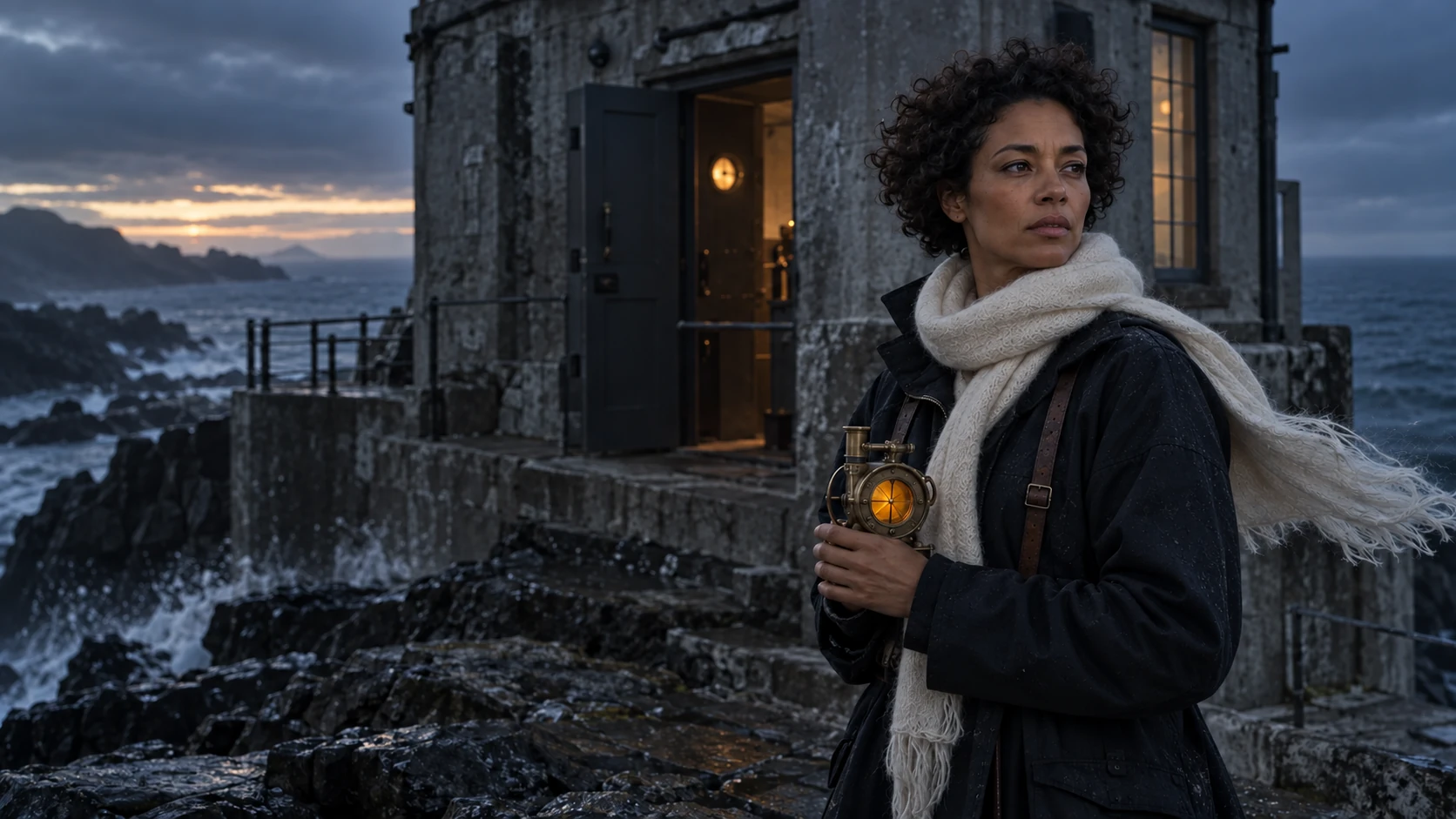
The next shot starts with what you already know.
A production moves from source material to reusable references, then to media you can assess shot by shot.
- 01
Start with the story
Add a script or idea to a project. Organize the work by episode, scene, and shot so each generation has a place in the production.
Script → scene → shot - 02
Build a reusable world
Keep character, location, and prop references in the project, then connect the relevant ones to the shots that need them.
Cast → locations → props - 03
Make and review each shot
Generate frames or clips for a shot, compare the results, and choose what should carry the production forward.
Frames → clips → review
What is a reference? A saved visual description or image for a character, location, or prop that can be reused across a project.
See the capabilitiesOne place for the work around the frame.
Each capability serves a specific part of planning, making, or reviewing a shot.
- 01
Plan the production
Keep the script, scene breakdown, shot plan, and production context together before rendering.
- 02
Set visual references
Create and manage character, location, and prop references that can inform later shots.
- 03
Generate media
Make images, video, and audio in the context of a project and its shot plan. Available models depend on your workspace.
- 04
Review the work
Compare output against the intended shot and track the preferred result as the sequence develops.
See the timeline in motion.
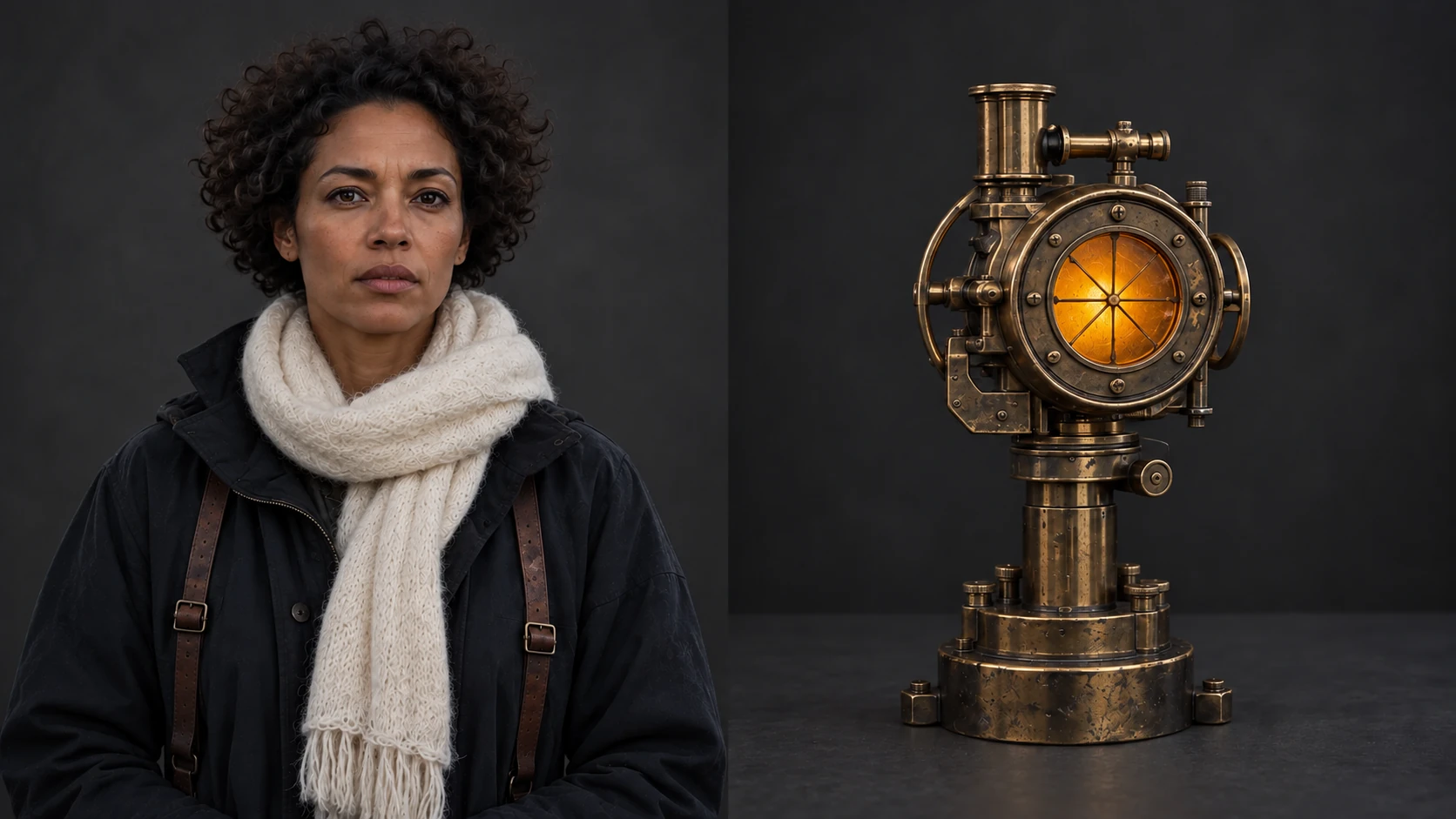
This short recording shows clips arranged in an earlier Mixio timeline interface. It is a look at the workspace, while the Signal House images on this page are illustrative story material.
Choose how you want to work.
Use Mixio in your browser, or connect an AI agent through Mixio skills and MCP.
Open the Studio.
Create an account and start a project. Browser use does not require an API key or an AI agent.
Connect skills and MCP.
Create an account and enter an API key privately. Your agent can install Mixio skills, configure @mixio-pro/mcp, and verify the connection.
Follow the setup steps, including the connection checks, in the guide.
Start your
production.
Bring a script or an idea. Build the references, then work through the shots.
Open Studio